
How to Repurpose a Past Ad for a Client
While it's ideal for clients to manage their ads, there are times when a publisher may need to repurpose a previously run ad on their behalf. This can happen if the client can't access the system, faces technical issues, or requests help due to time constraints or unfamiliarity. In such cases, the publisher steps in to ensure the ad runs on time and avoids production delays.
- In ARC, navigate to the Reporting tab on the left-hand side of the home page.
- Select the “Ads List” report from the drop-down menu to display.
- Select the current month you are working on at the top of the Ads List.
- Locate the Status column for the business you are working on.
- When viewing a “Submit Ad” status, you will see two options:
- If there is a small red triangle next to “Submit Ad,” it indicates that either the client is a new client or their ad insertion size has changed from the previous month, meaning there is no past ad available to pick up.
- If there is no red triangle, it indicates the client has a past ad in the same insertion size that they can repurpose.
- If the client has a past ad they would like to reuse, click on “Submit Ad” and locate “Repurpose a Past Ad.”
- Choose the “Use Ad Is” button if you do not need any revisions or the “Make Changes” button if revisions are needed.
- Note: If the Make Changes button is greyed out, it means design services were not included in the client’s contract (Read more here: Design Services in an Agreement).
- Use As Is:
- Select the previously approved ad (shown by the month it ran) that the client intends to reuse.
- Click the green “Submit” button to proceed with using the ad as is.
- Make Changes:
- Select the previously approved ad (shown by the month it ran) that the client intends to reuse.
- Add any new images by scrolling to the “Add Images or Files for the Changes” section and clicking the “+ Add an Image” button.
- Add any requests, text, or information in the “Change Request Notes” text box.
- Once revisions have been added, click the green “Submit” button at the bottom of the revisions page to send the request to the production team for review.
- Both provided ads and City Lifestyle-created ads are listed in the client’s ad list in the Customer Portal. In this case, ARC cannot distinguish whether City Lifestyle created the ad you want to repurpose.
- If City Lifestyle's production team created the ad, they will complete the changes and post a proof for review.
- If the ad was created and submitted by the client as a print-ready ad:
- It can only be used as is, with no revisions.
- The production team will leave a revision note indicating the ad was provided and that, to move forward, all materials to recreate the ad will need to be provided.
How to Repurpose a Past Ad (Publisher POV)
This guide will walk you through the process of repurposing a previously ran ad for a client in ARC.
Go to citylifestylehq.com
1. Repurposing an Ad for a Client
While it's ideal for clients to manage their own ads, there are times when a publisher may need to repurpose a previously ran ad on their behalf. This can happen if the client can't access the system, faces technical issues, or requests help due to time constraints or unfamiliarity. In such cases, the publisher steps in to ensure the ad runs on time and avoids production delays
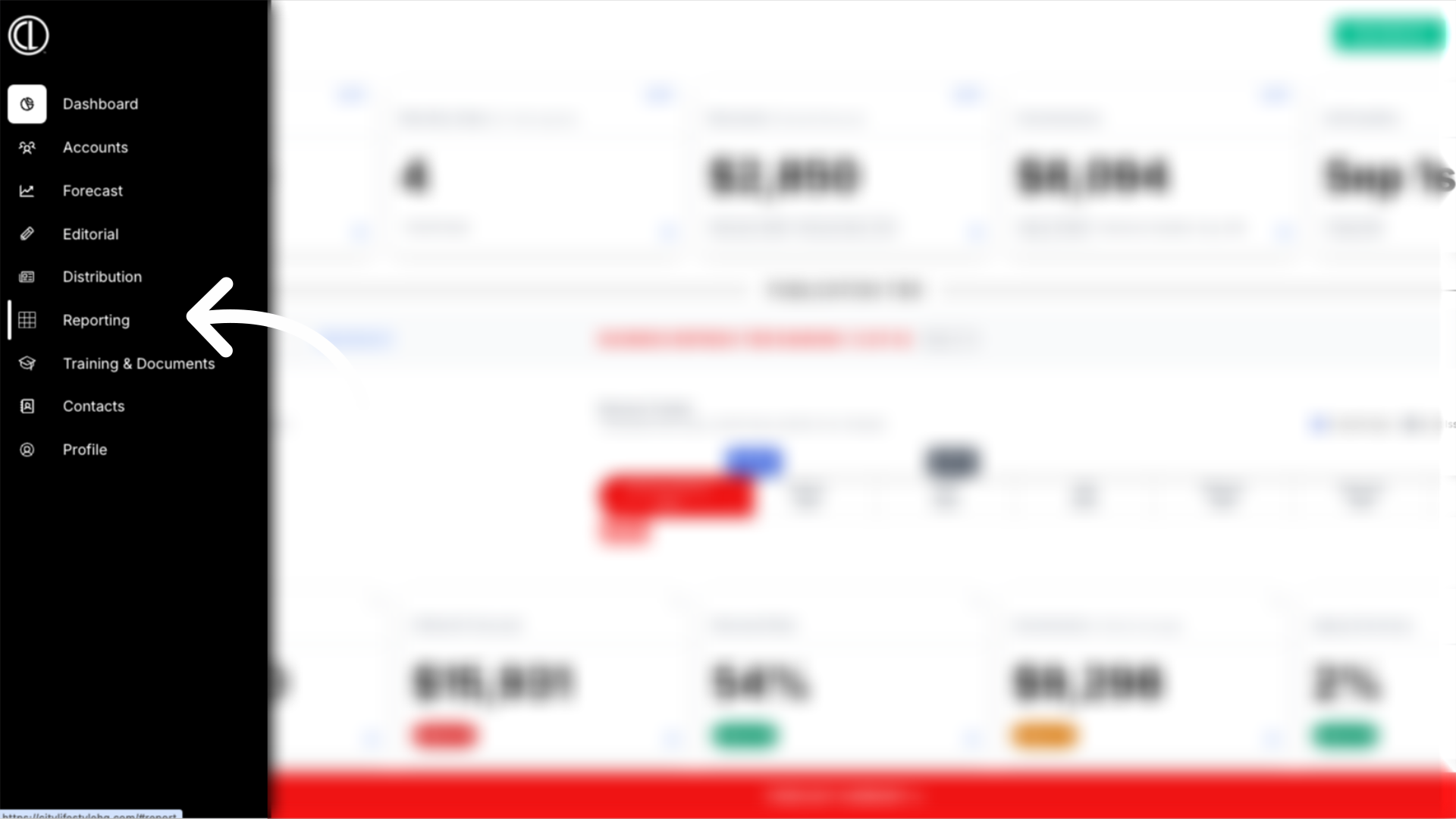
2. Reporting Page
In ARC, navigate to the Reporting page on the left hand side.
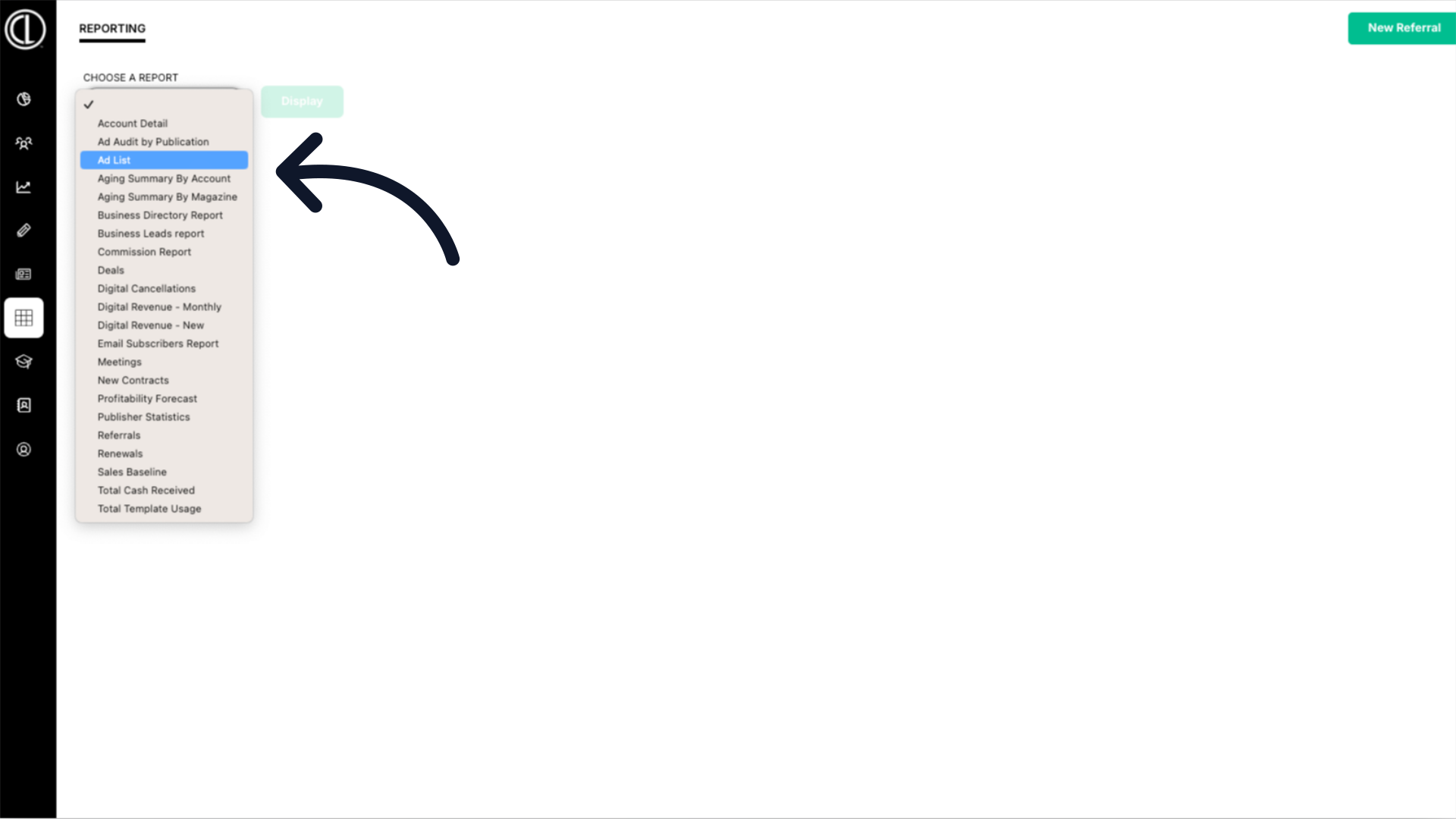
3. Select Ad List report
Select the Ad List report from the drop down menu.
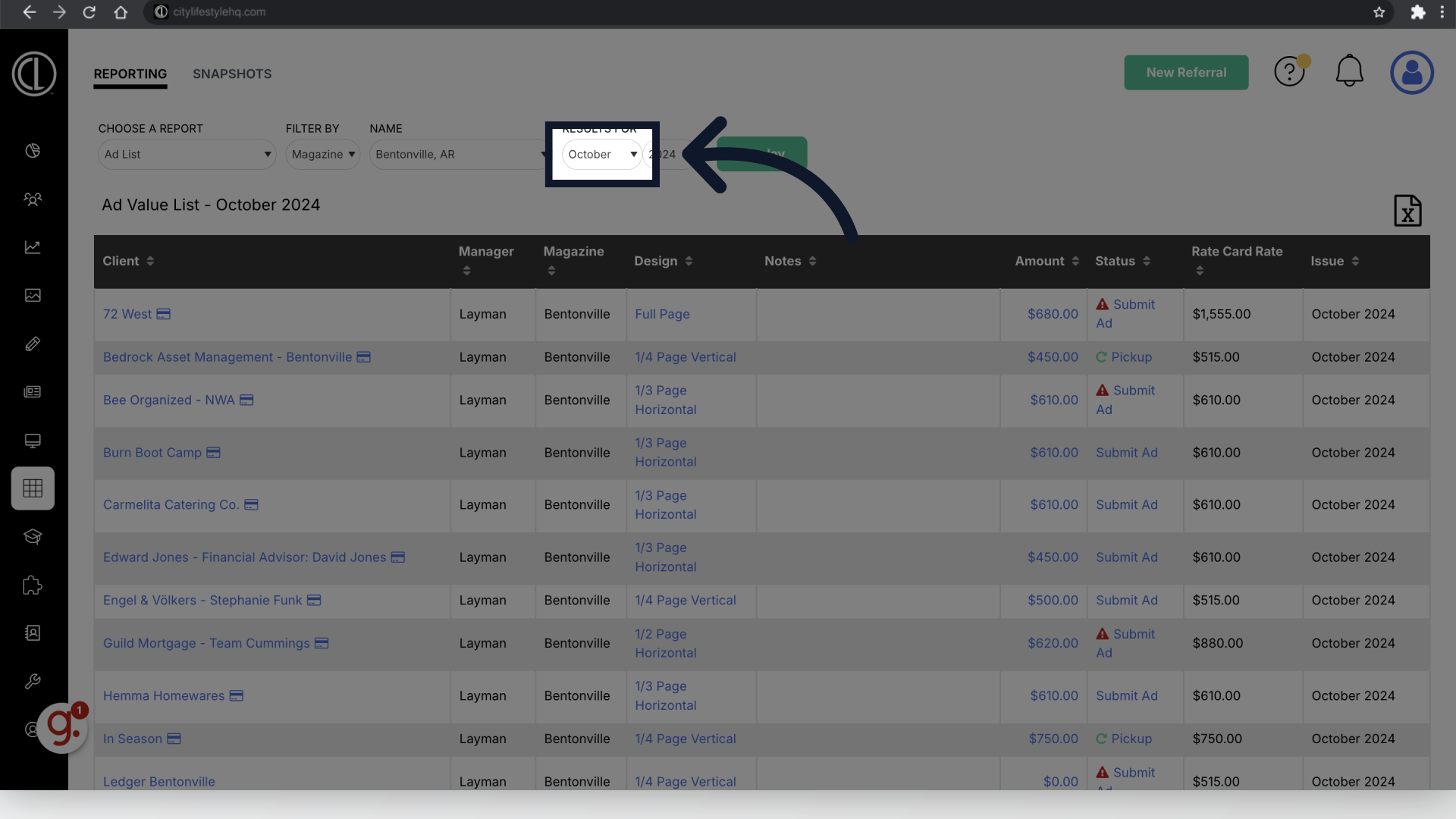
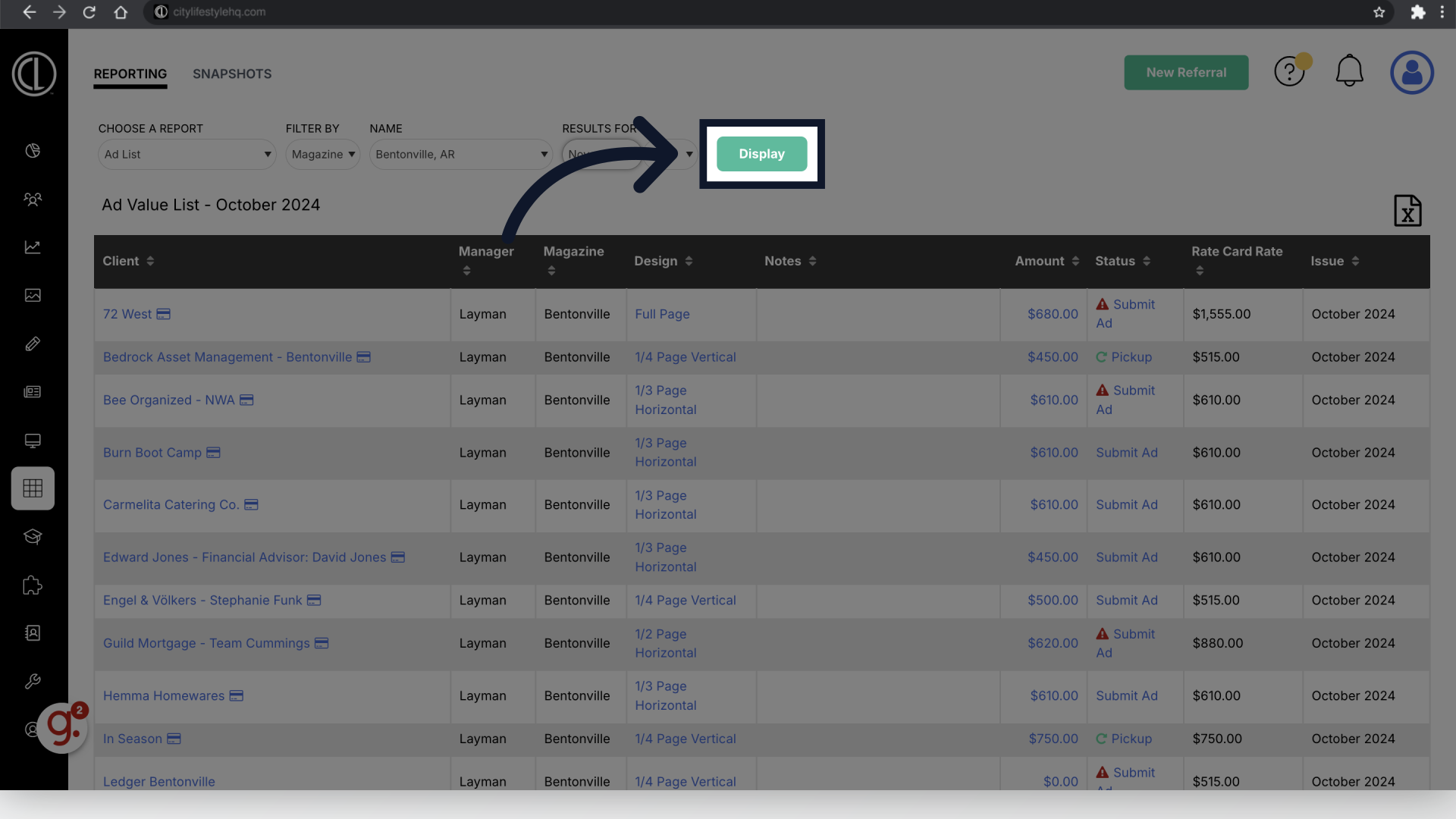
4. Select the month
Select the desired month.
5. Click "Display"
Click Display
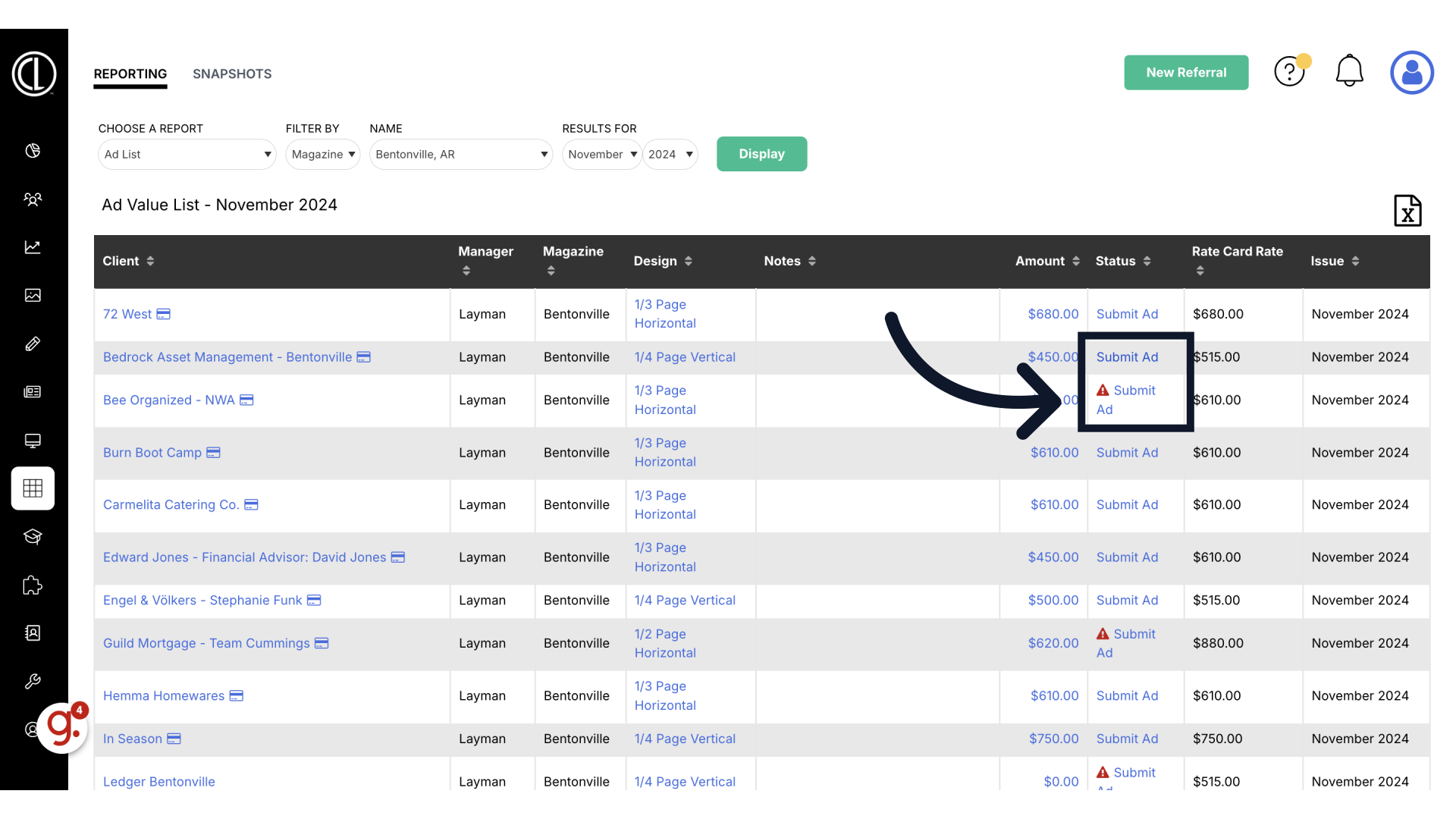
6. Click "Submit Ad"
Locate the client you're working with and under the Status column to the right click Submit Ad. If there is a small red triangle next to "Submit Ad," this indicates the client is either a new client or their ad insertion size has changed and their is no previous ad to run. If there is no red triangle, this indicates the client has a past ad in the same insertion size that they can repurpose.
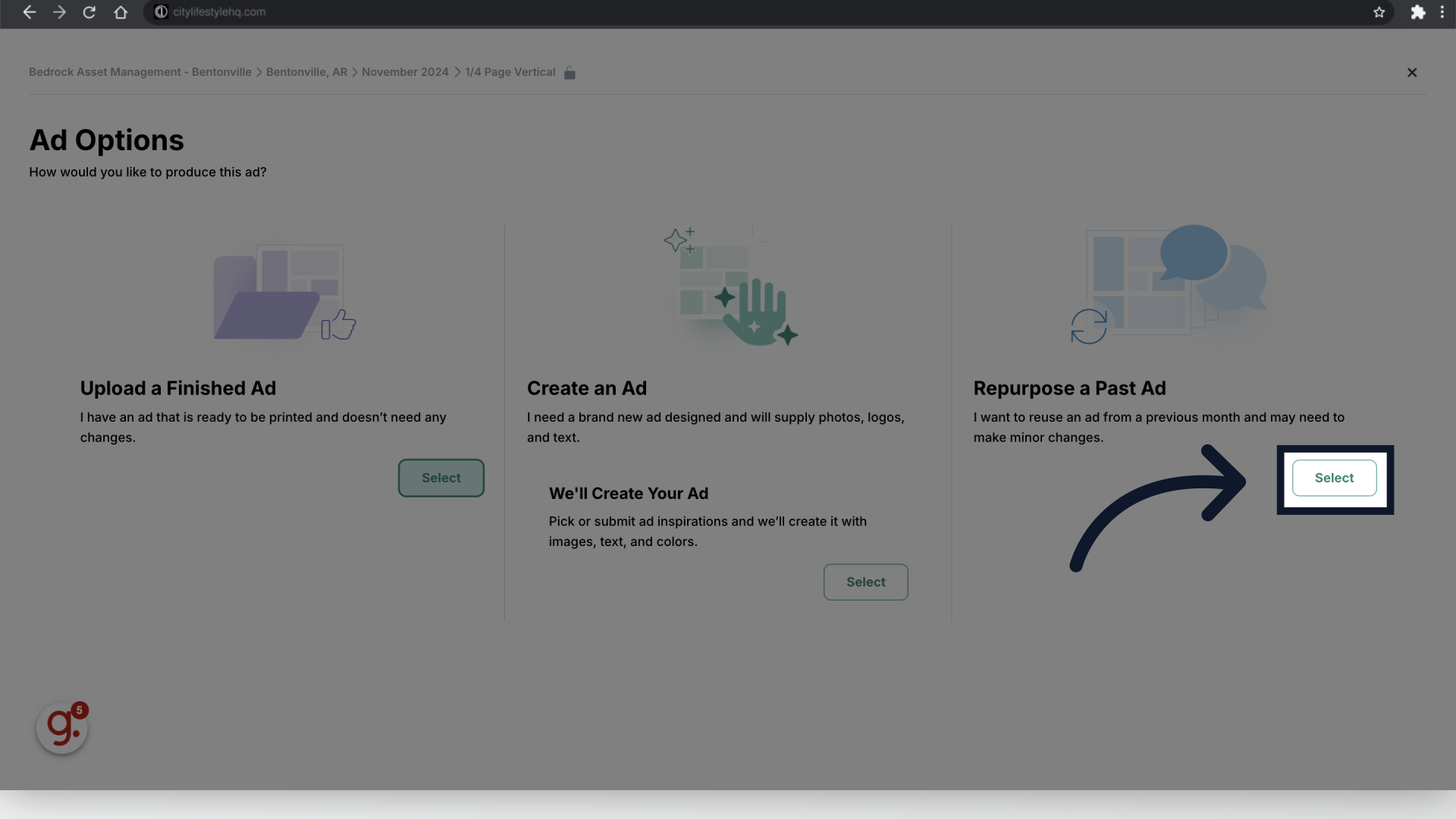
7. Repurpose a Past Ad
Under Repurpose a Past Ad click Select
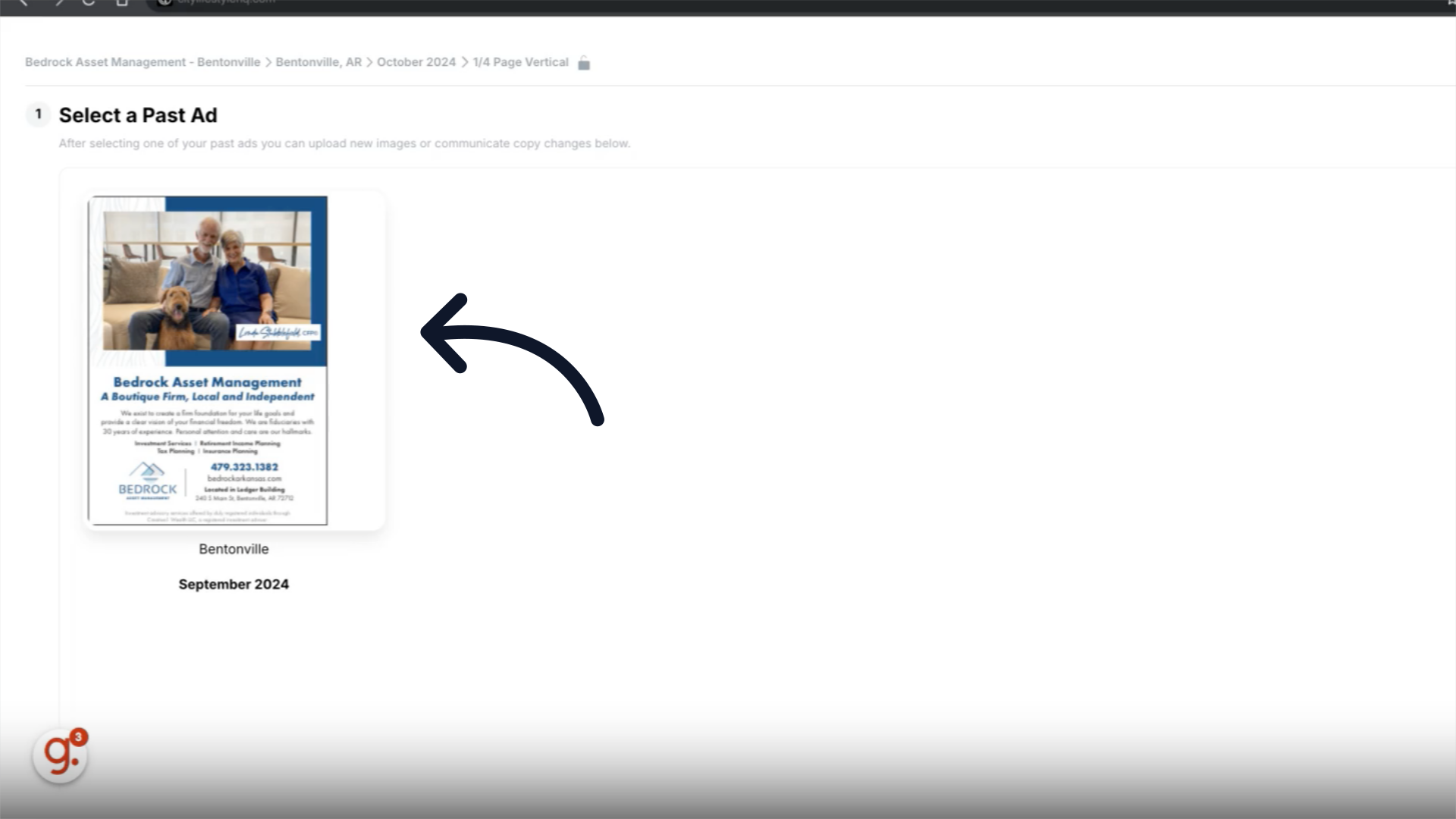
8. Select the Ad
Select the previously ran ad you would like to repurpose
9. Conditions for Repurposing an Ad
If the ad was created by City Lifestyle's production team, you have the option to repurpose it as is or request minor changes, since the production team already has the necessary files for quick revisions. However, if the ad was originally created and submitted by the client as a print-ready ad, it can only be repurposed as is, with no revisions allowed.
10. Request Revisions or Submit Ad
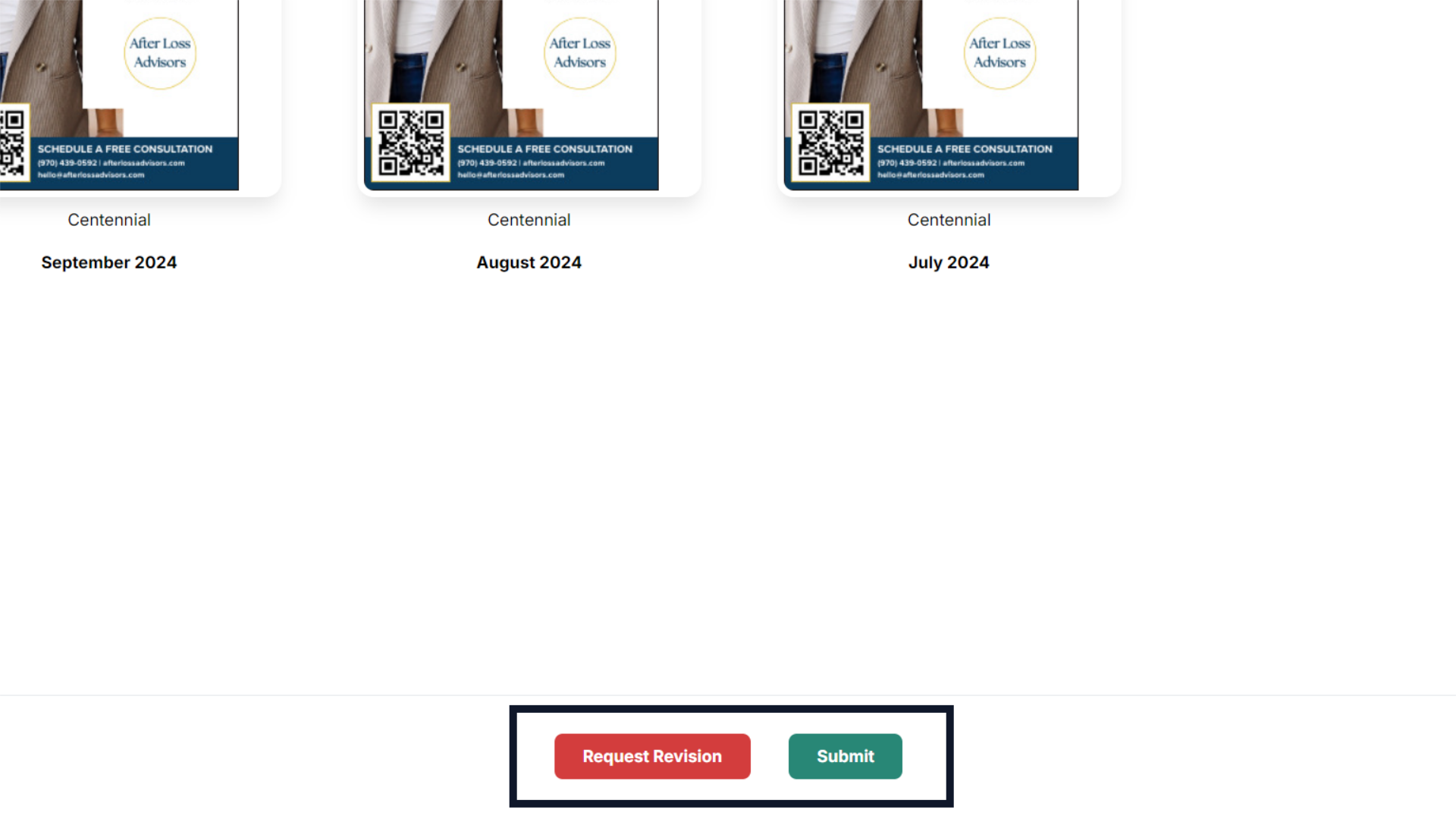
If no revisions are needed, click the green "Submit" button to proceed with repurposing the ad as is. If revisions are allowed and needed, scroll to the bottom of the page and click the red "Request Revisions" button.
11. Upload new files and add request notes
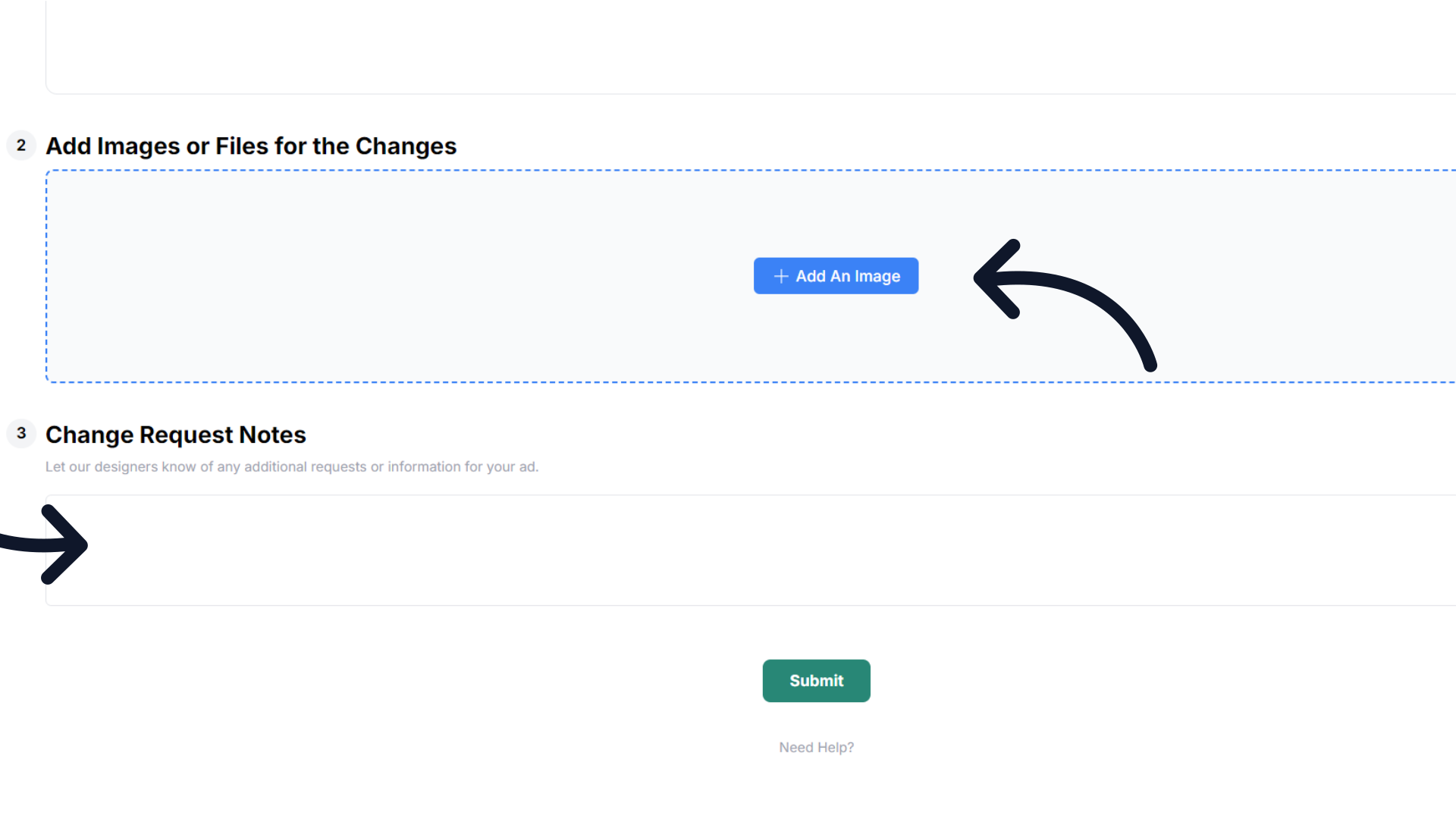
Upload any new images in the "Files" field, and provide new or updated copy along with any relevant notes in the "Notes" field. Click submit to submit the ad and revision request.
The guide covered how to repurpose a previously ran ad for your client in ARC.