
How to Navigate the Residential Routes Tab in Arc
The Residential Routes tab presents selected data from the residential overview supplied by the distribution team. Because demographic information is excluded, it is essential to retain access to the full overview for sales meetings and detailed lookups by address, neighborhood, or location.
Steps:
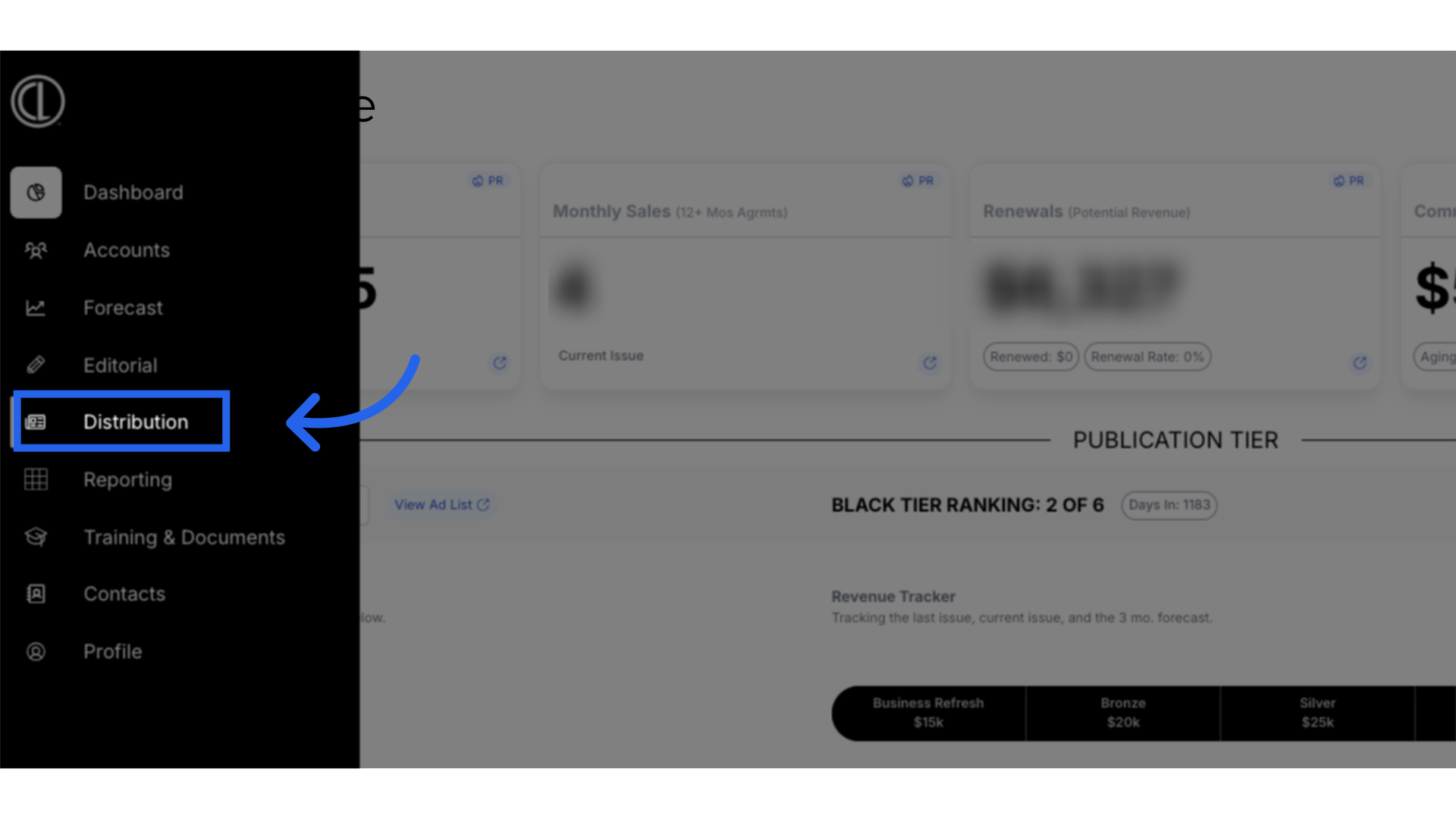
- In ARC, locate the menu on the left side of the screen and click on the “Distribution” tab.
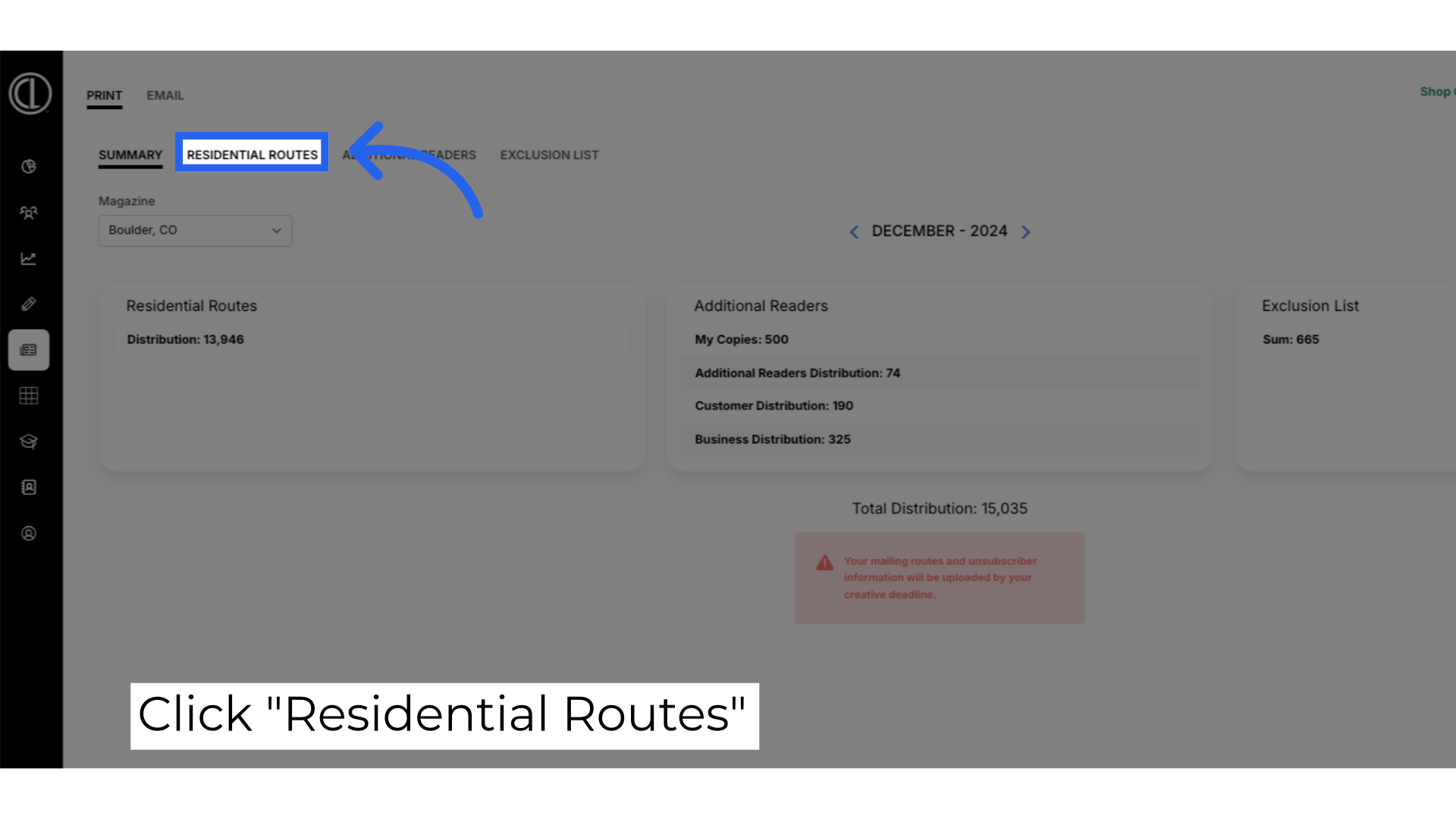
- Click on “Residential Routes” at the top of the page.
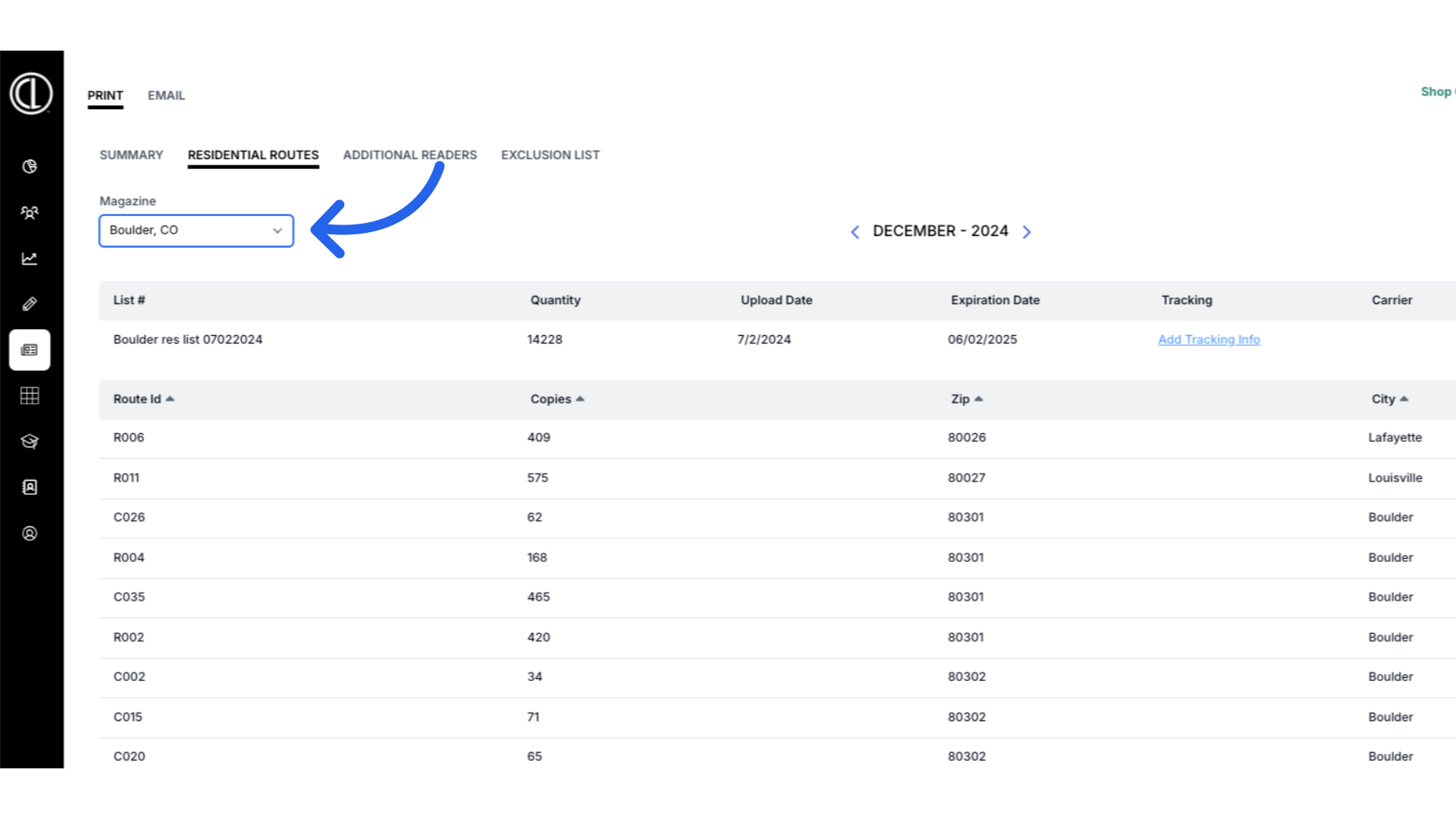
- Select which magazine you want to view from the dropdown box on the left side of the screen.
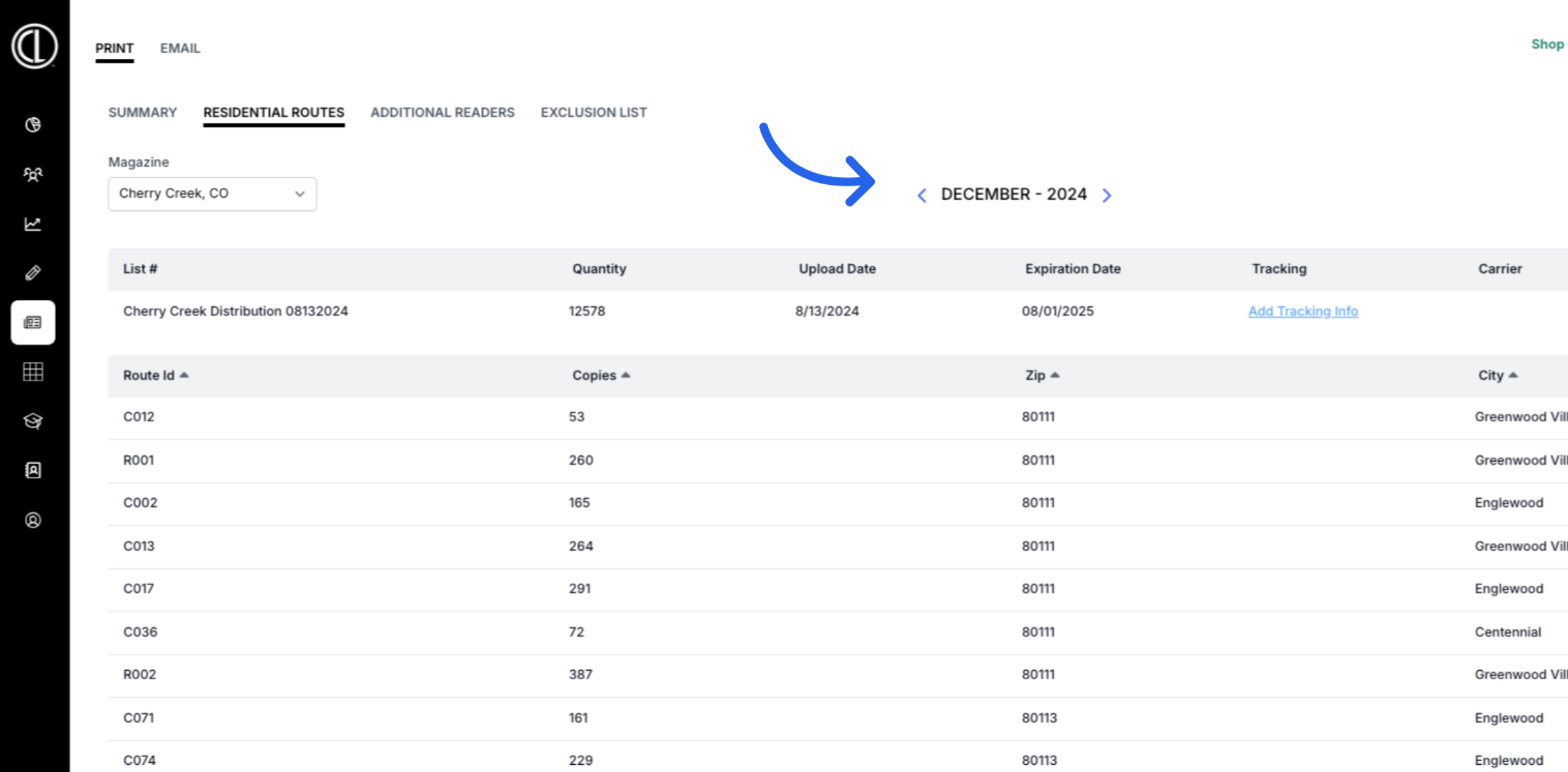
- Locate the month and year towards the top center of the page.
- Select the month you wish to view by clicking on the blue arrows to the left and right of the month-year shown.
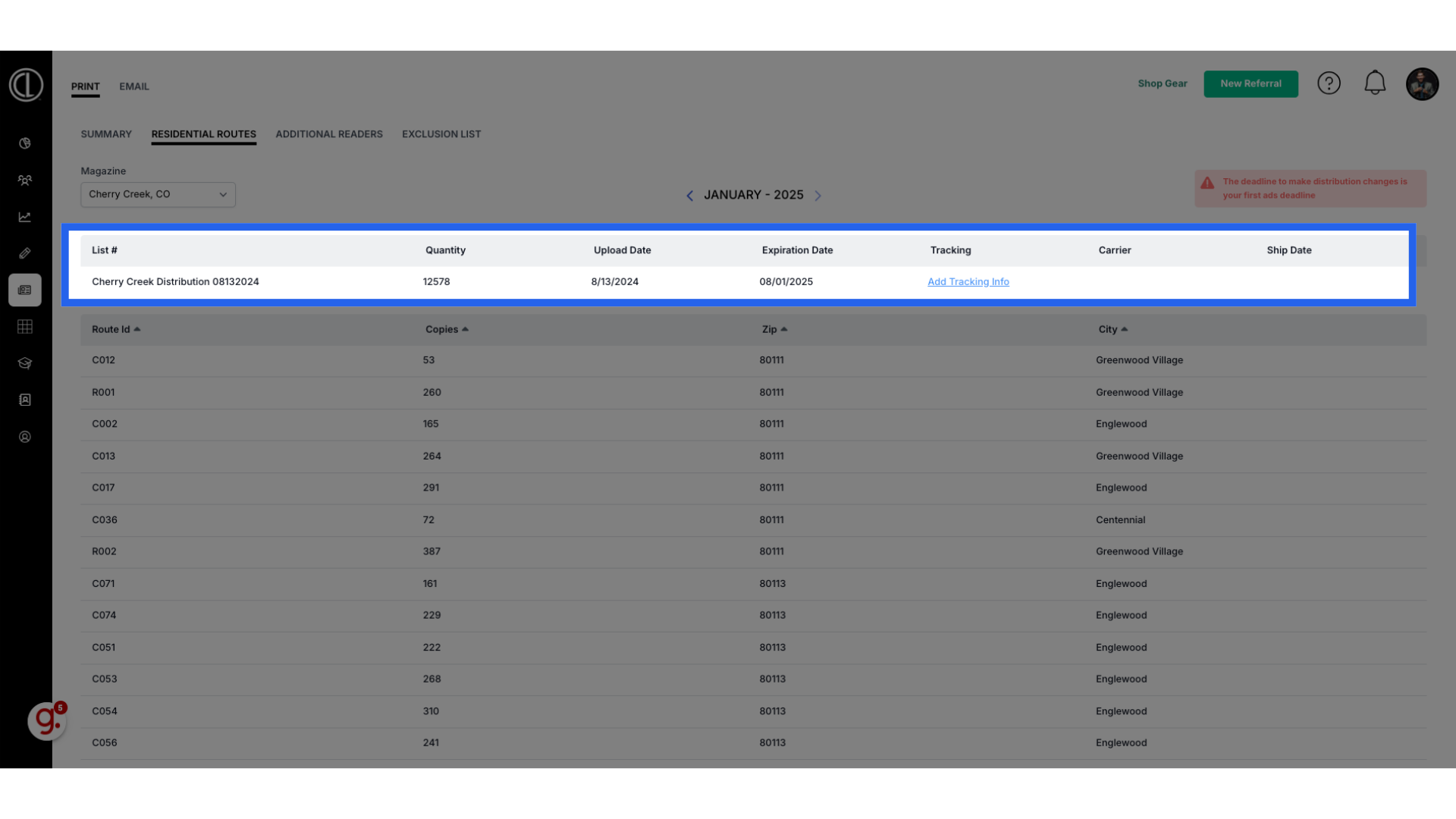
- The top table will display the List # Name, the total quantity of copies in the distribution list, Upload Date, Expiration Date.
- Total quantity per route, route ID and zip are pulled from the list.
- Upload and expiration dates entered by the Distribution team.
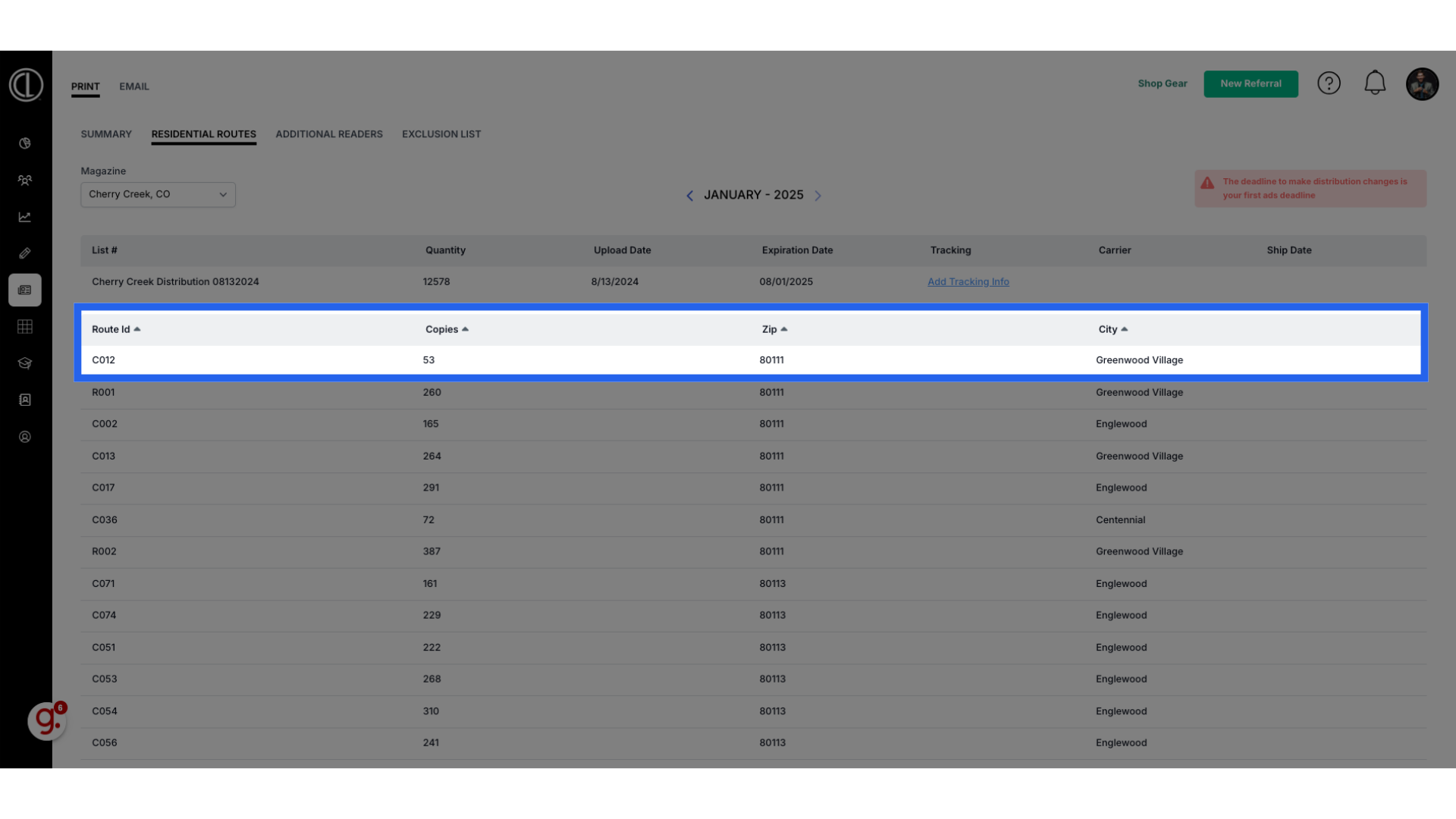
- The bottom table will display each Route ID, the number of copies mailed in that route, the Zip code, and the City.
- Route ID: is a unique identifier assigned to a specific route or delivery area within a zip code used by postal carriers. Details on carrier routes available in the “Understanding your Residential Overview” document.
- You can filter the list by each column by clicking on the arrow next to the column title.
How to Navigate the Residential Routes Tab in ARC
This guide will walk you through navigating the Residential Routes tab in ARC, providing detailed instructions on accessing specific routes, viewing information, and reviewing route details in the Citylifestylehq application
1. Residential Routes
The Residential Routes tab displays the number of copies assigned to each carrier route ID within the designated zip codes. Please note that residential route changes are made annually or when tier changes have been reached. The deadline for making any distribution changes aligns with your first ads deadline.
2. Click "Distribution"
In ARC, click on the Distribution tab on the left hand side.
3. Click "Residential Routes"
Access the "Residential Routes" section.
4. Select Magazine
Select which magazine you want to view from the dropdown box on the left side of the screen.
5. Select Month/Year
Select the month you wish to view by clicking on the blue arrows to the left and right of the month-year shown.
6. Distribution Information
The top table will display the distribution list number/name, the total quantity of copies in the distribution list, it's upload date, expiration date, tracking number, carrier, and ship date. These are entered by the Print and Distribution department once they become available.
7. Carrier Routes Information
The bottom table will display each Carrier Route ID, the number of copies mailed in that route and the zip code and city shipped to. The Carrier Route ID is a unique identifier assigned to a specific route or delivery area within a zip code used by postal carriers. This allows you to view the details of your distribution. You can sort each column by clicking on the arrow next to the title.
The guide covered how to access and navigate the Residential Routes tab in ARC.