
How to report a phishing email in Gmail
If you get an email that looks suspicious, report it as phishing in Gmail. This removes it from your inbox and helps block similar emails for everyone.
Signs an email may be phishing
Most phishing we see looks like normal business email. Be careful with messages like:
- "Here is the invoice you requested" or "Please review the attached RFP / proposal / contract", especially when you weren't expecting it.
- "[Name] has shared a document with you", with a button to view it in Google Drive, Dropbox, DocuSign, or OneDrive.
- A message that looks like it's from a client, vendor, or someone at City Lifestyle, but the email address doesn't match their real one.
- Anything that asks you to sign in to view a file, or to "verify" your account.
- Urgent requests for payment, gift cards, or changes to bank details.
Even if you know the sender, their account may have been hacked. If something feels off, check with them by phone or a new email before you click.
Report a phishing email
- Open the email in Gmail. Don't click any links or open any attachments.
- Click the three dots (⋮) in the top-right corner of the message.
- Click Report phishing.
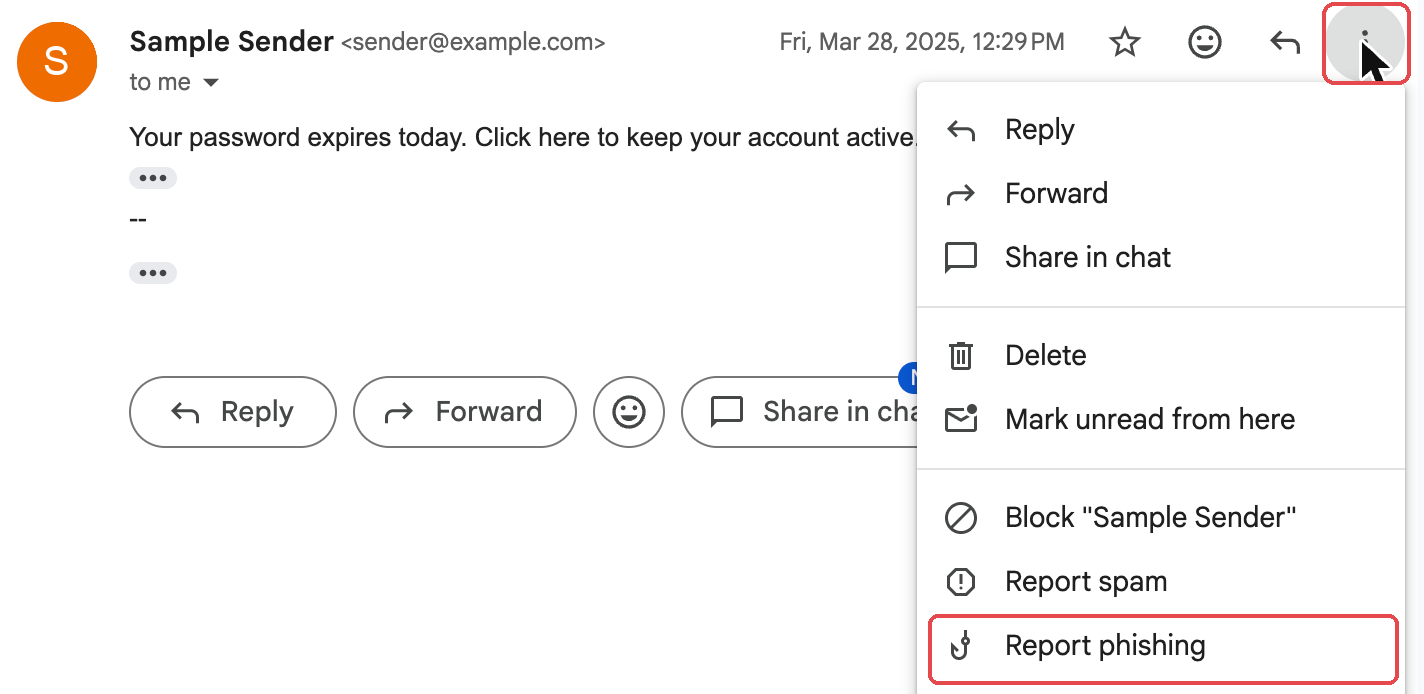
- Click Report Phishing Message to confirm.
If the email is just unwanted junk rather than a scam, choose Report spam instead.
Already clicked a link or entered your password?
Submit a ticket to National Support right away so we can secure your account.