
How to use your shared team inbox (Google Groups)
Your magazine's shared team inbox (for example, yourcity@citylifestyle.com) is a Google Group. Emails sent to that address arrive in the group, where you and anyone on your team with access can read them and reply.
Open your shared inbox
- Sign in to your City Lifestyle Google account, then go to:
https://groups.google.com - Click My groups in the left menu.
- Click your team inbox (for example, Chevy Chase City Lifestyle Team Inbox).
- Click Conversations in the left menu to see every email sent to the shared address, newest first.

Tip: bookmark the Conversations page so you can get back to it in one click.
Reply from the shared address
- Click a conversation to open it.
- Click Reply all (or Reply to author).

- Check that the From menu shows your shared address (for example, chevychase@citylifestyle.com). If it shows your personal address, click it and choose the shared one.
- Write your reply and click Post message.
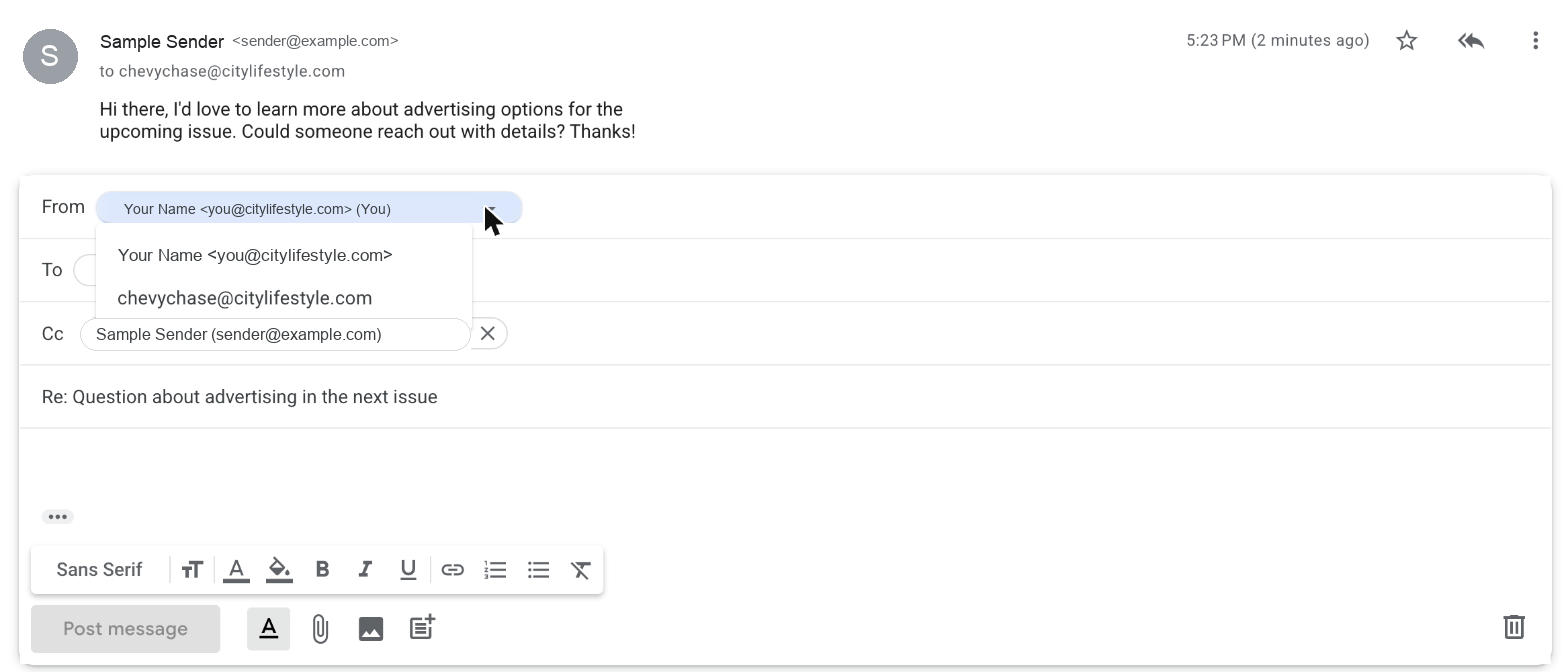
Keep track of what's been handled
The icons along the top of an open conversation let your team divide up and close out emails. Hover over an icon to see its name.
- Assign to me or Assign to someone: shows who is handling the email.
- Mark as complete: use this once the email has been answered.
Want the emails in your regular inbox too?
By default, emails to the shared address only show up in the group. If you'd also like a copy sent to your own inbox, contact National Support and we'll turn that on for you.